The multimedia repository now contains drivers for three kinds of USB “displays” that need more than what the standard kernel packages provides out of the box:
- DisplayLink USB adapters
- Silicon Motion USB adapters
- XR glasses (as supported by the XR Linux Driver project)
All of them are packaged so the installation is pretty straightforward: plug in the device and the required service starts by itself presenting you additional monitors you can configure.
DisplayLink
The displaylink package, even though available for years now, adds support for docking stations, USB monitors and USB adapters built on the DisplayLink DL-6xxx, DL-5xxx, DL-41xx and DL-3xxx chipsets. The driver is made of a proprietary user space service (DisplayLinkManager) and the open source EVDI kernel module, which creates the virtual outputs the service drives.
A udev rule starts displaylink.service when a DisplayLink device is plugged in and stops it when it is removed, so the service never runs when it is not needed. The package also disables USB 3 link power management on the port the adapter is connected to, as the upstream installer does (theoretically is only for USB ethernet network interfaces, but you never know). On Fedora and EL 9, the xorg-x11-displaylink subpackage is installed automatically if you also have the X.org server as it specifies Supplements: xorg-x11-server-Xorg.
Availability:
The package is available for Fedora 43+ and EL 9/10, on x86_64 and aarch64.
Silicon Motion USB displays
The smiusbdisplay package does the same for docking stations, USB monitors and USB adapters built on the Silicon Motion SM76x and SM77x USB display controllers. It also uses the same EVDI kernel module, together with the proprietary Silicon Motion user space service.
Again, a udev rule starts and stops smiusbdisplay.service when an adapter is plugged in or removed. Silicon Motion also makes USB storage controllers with the same vendor ID, so the rule matches only the display adapters.
The package is available for Fedora 43+ and EL 10 on x86_64 and aarch64. For EL 9 is available only for x86_64.
The EVDI kernel module
Both packages require the EVDI kernel module, which after a merge request I did in June, should be more robust in probing what features and symbols are available in each kernel, including RHEL/CentOS backports.
The kernel module pacakges are available in three flavors, as usual. Pick one:
akmod-evdi: the module is rebuilt automatically on your system for every new kernel. Available on Fedora and EL.dkms-evdi: the same, using DKMS instead of akmods. Available on Fedora and EL.kmod-evdi: a precompiled module that uses the stable kernel ABI of RHEL, so nothing needs to be compiled when the kernel is updated. EL only.
XR glasses
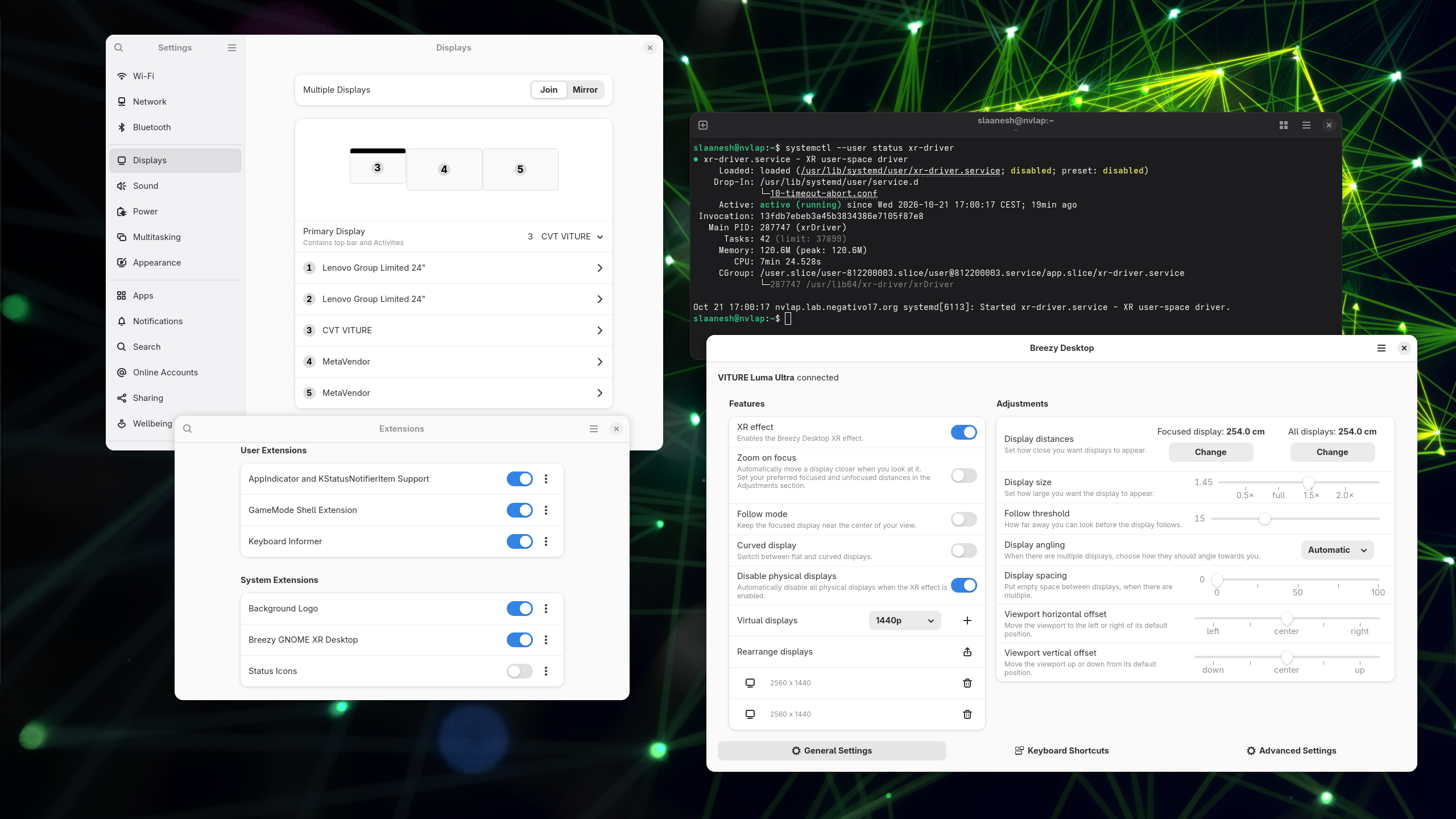
XR glasses like the VITURE, XREAL, Rokid and TCL/RayNeo models are connected through USB-C and already work as a normal external monitor with no additional software. What is missing is head tracking, which is needed to turn them into a virtual desktop with screens anchored in space around you. This is now provided by two new packages:
xr-driver(XRLinuxDriver): the user space driver that reads the head tracking data from the glasses. It can also use it directly as mouse or joystick input.breezy-desktop(Breezy Desktop): the virtual desktop itself.- Install
breezy-desktop-gnomefor the GNOME Shell extension and its control panel. - Install
breezy-desktop-kwinfor the KDE Plasma effect and its settings module.
- Install
Supported glasses, at the moment of wriing:
| Brand | Models |
|---|---|
| VITURE | One, One Lite, Pro XR, Luma, Luma Pro, Luma Ultra, Beast, Pro 2 XR |
| XREAL | Air, Air 2, Air 2 Pro, Air 2 Ultra, One, One Pro, 1S, xbx a01+ |
| Rokid | Max, Air |
| TCL/RayNeo | NXTWEAR S/S+, Air 2, 2s, 3s/Pro |
XREAL glasses are supported through an open source implementation of their protocol. VITURE, Rokid and TCL/RayNeo glasses are supported through the proprietary SDKs of the respective vendors, which are included in the xr-driver package; each of them has its own license. Rokid and TCL/RayNeo glasses are supported only on x86_64. The proprietary libraries of the vendor specific Linux SDKs are not available for download outside of the XRLinuxDriver repository.
The driver runs as a systemd user service. A udev rule starts it in your session as soon as you plug in the glasses, so there is no need to enable it. If you prefer to keep it always running, enable it with:
systemctl --user enable --now xr-driverOn GNOME, an extensions is required; so after installation of the package log out and log back in. After GNOME Shell has picked up the new extension, you can then open “Breezy Desktop” from the application menu. On KDE Plasma, open “Breezy Desktop” from the application menu to configure the effect.
Please note that the virtual desktop features of Breezy Desktop are not free. They come with a 2 month free trial, which is activated automatically the first time the driver goes online. After that, you need a Productivity license from the author; the Pro plan is required for the position tracking (6DoF) of glasses like the VITURE Luma Ultra. A free Basic license is available to some groups of people for non-commercial use. All the details are in the Breezy Desktop README.
The packages are available for Fedora 44+ and EL 10, on x86_64 and aarch64. I tested them on a laptop with VITURE Luma Ultra glasses connected to a USB-C port that is connected directly to an NVIDIA GPU in an optimus laptop. The GPU started, and the extra monitor appeared.
Installation
Add the multimedia repository on Fedora:
dnf config-manager addrepo --from-repofile=https://negativo17.org/repos/fedora-multimedia.repoOr on EL:
dnf config-manager --add-repo=https://negativo17.org/repos/epel-multimedia.repoThen install what you need, for example:
dnf install displaylink dkms-evdi
dnf install smiusbdisplay dkms-evdi
dnf install breezy-desktop-gnome
dnf install breezy-desktop-kwin
The Breezy Desktop packages pull in xr-driver automatically. On EL 10, the KDE Plasma, akmods and DKMS packages come from EPEL, so make sure it is enabled if you want to use breezy-desktop-kwin.
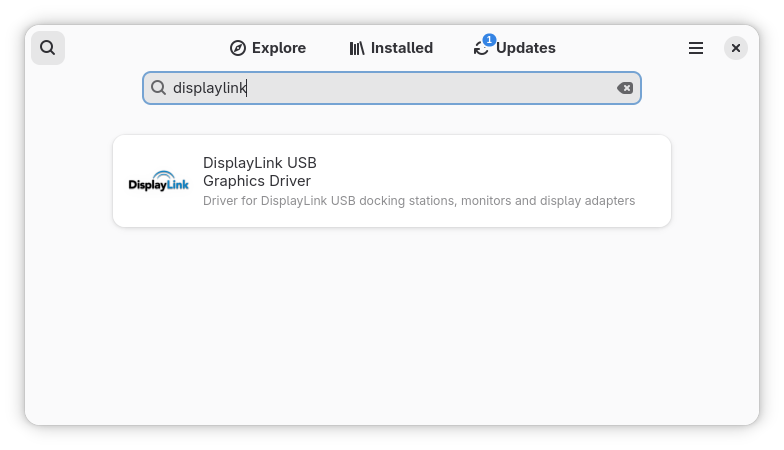
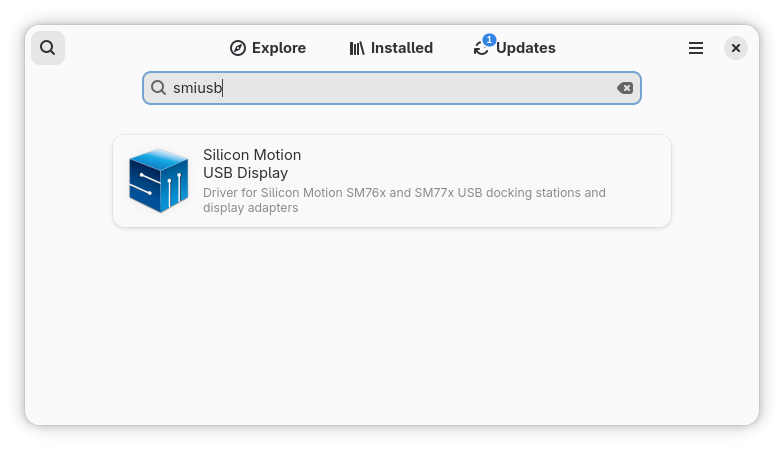
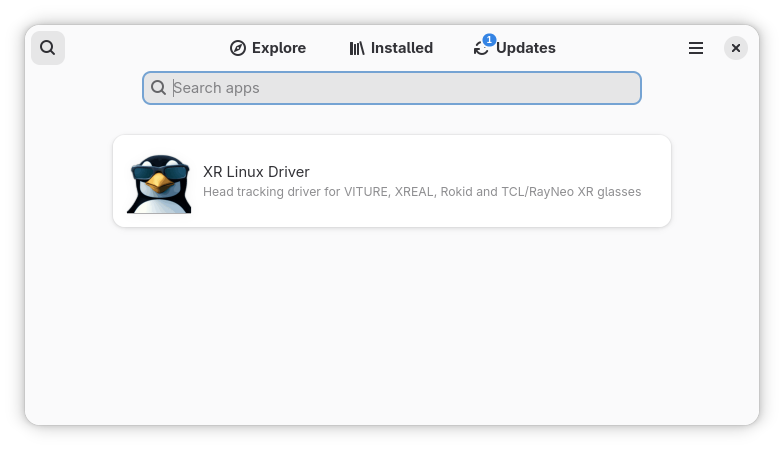
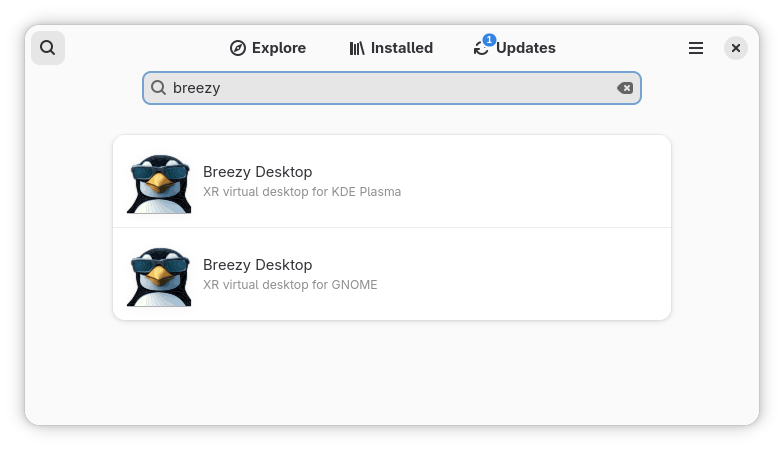
All of these appear of course in GNOME Software and are suggested to be installed in case you have the matching USB IDs on the system (the hardware is plugged in).
Recent Comments